Appearance
Daily accountant workflow
Follow this order for a clear audit trail. Your role and the current safety gates determine which buttons are available.
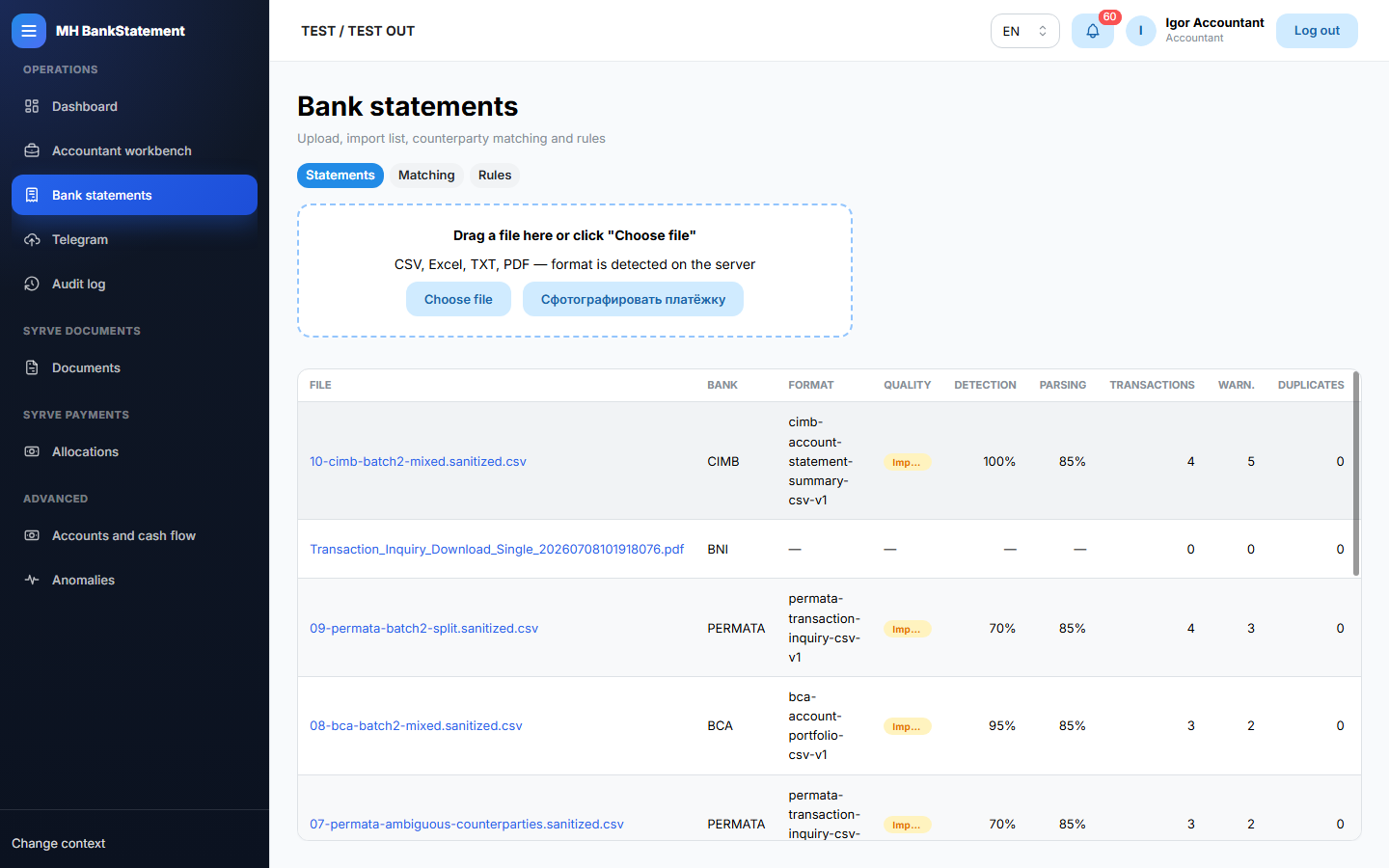
1. Import a bank statement
- Open Bank statements.
- Confirm the active organization/outlet.
- Upload the bank file and wait for the import result.
- Open the import to review its transactions, warnings, and any duplicates.
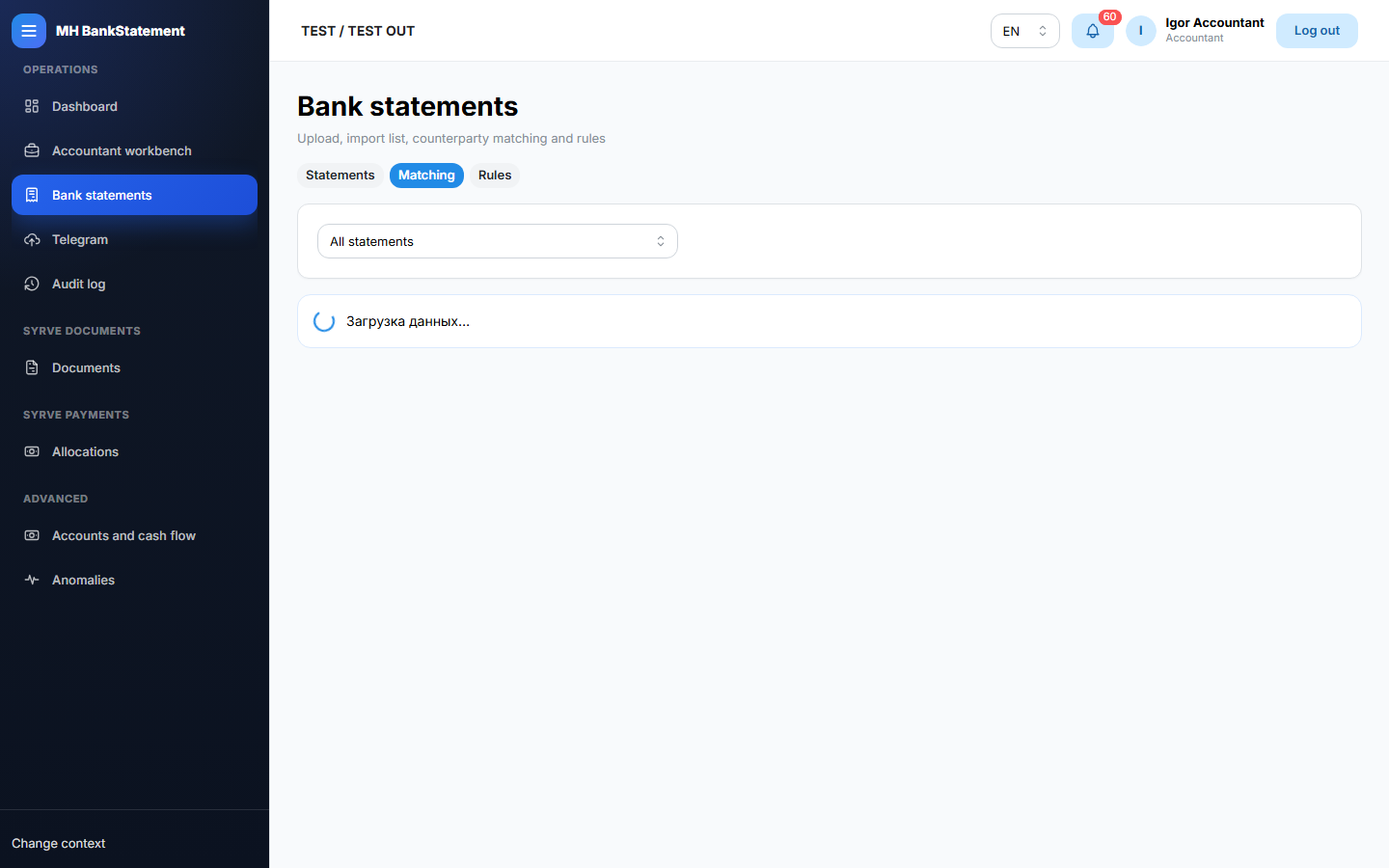
2. Review matching
- Open the imported statement or Name matching.
- Review suggested counterparties and the explanation shown for a match.
- Correct, exclude, or create a matching rule only when the source information supports the decision.
- Leave uncertain items for review; do not force a guess.
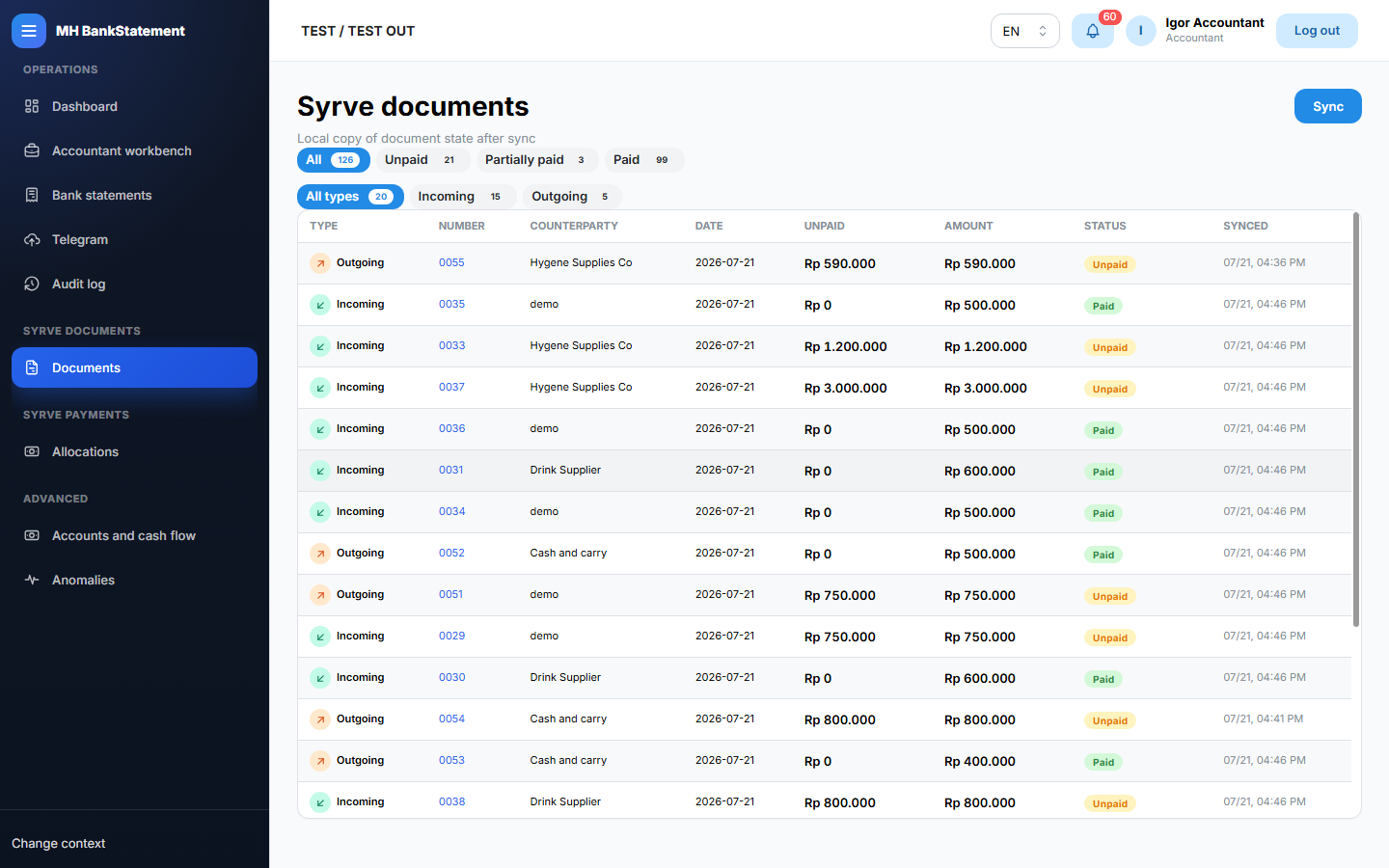
3. Check documents
- Open Syrve documents.
- Review payment status separately from processing status. A payable target must be Processed and not Deleted.
- If the page shows Not processed or Status unknown, refresh documents and do not confirm payment.
- Refresh or synchronize only when your permissions allow it and the page requests it.
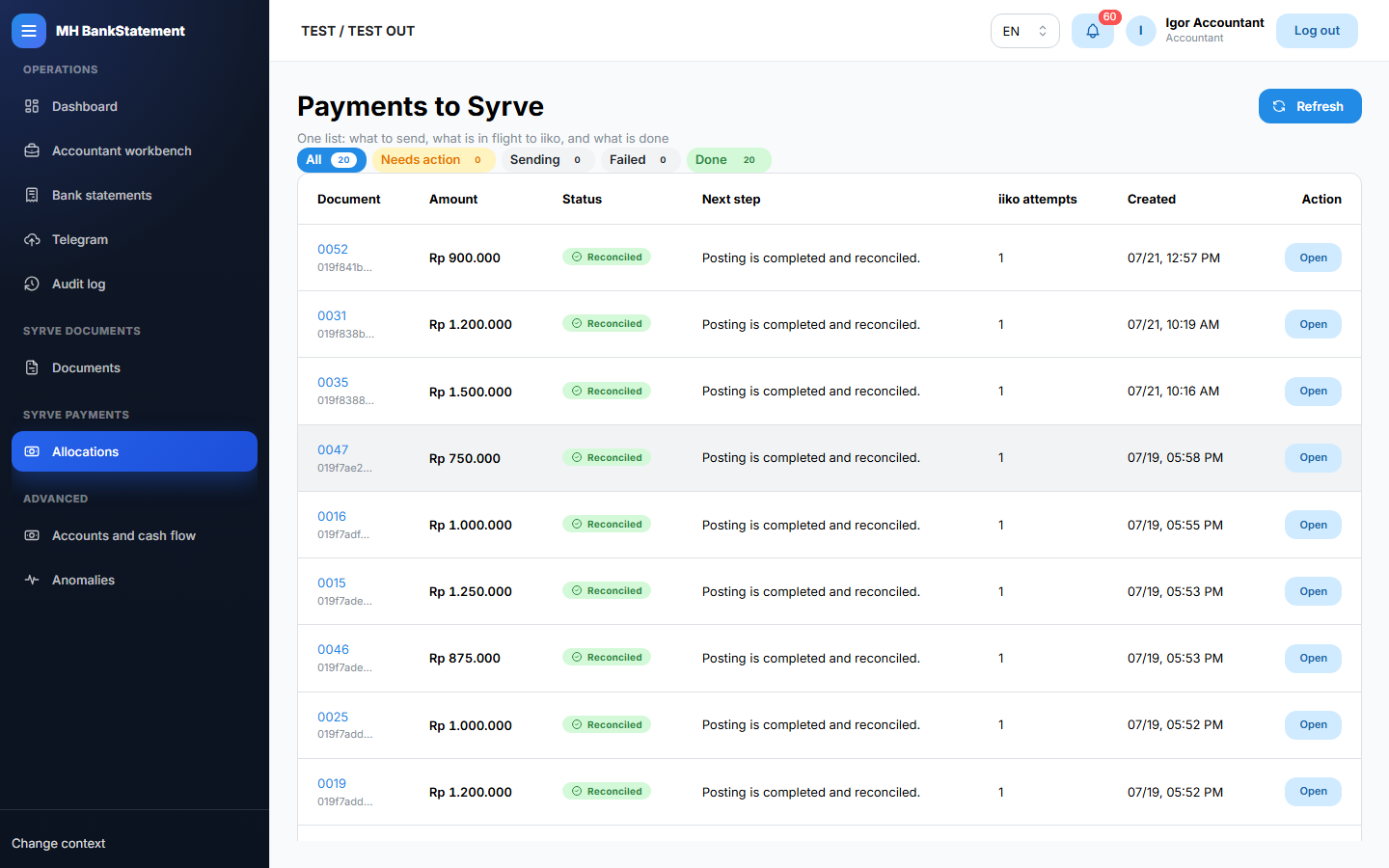
4. Allocate and prepare posting
- Open Payment allocations or the payment posting flow for the transaction.
- Compare the bank transaction, selected documents, and allocation total.
- Confirm or approve only after the information is complete and consistent.
- Follow the visible preflight and approval steps. A successful queue action is not the same as a completed external posting.
- Processing-state blocks cannot be bypassed by manually entering a document id.
5. Resolve anomalies
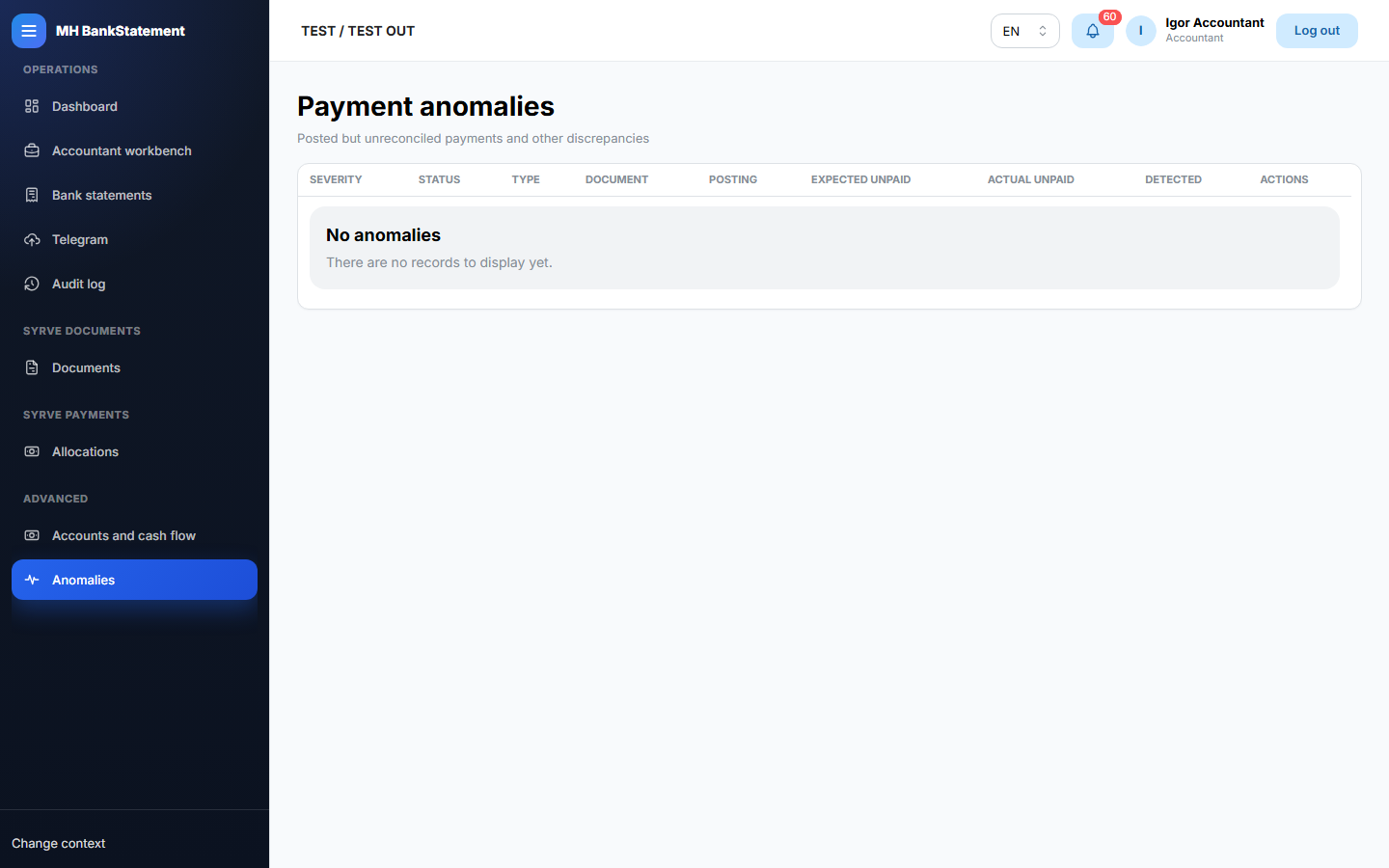
- Open Payment anomalies when a warning, failed action, or unresolved item appears.
- Read the reason and related payment evidence.
- Correct the underlying data or follow your organization procedure.
- Retry or reconcile only when the page allows it and you understand the result.
End of day
Return to the dashboard or workbench, make sure attention items have an owner, and use the audit log when you need to confirm what happened.